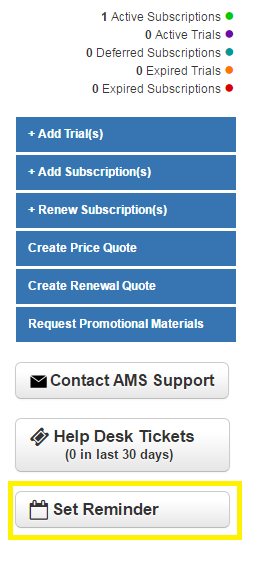
Any user can now set a personal reminder for any account with a specific follow-up date and comment. The new Set Reminder button can be found on any account directly under the Help Desk Tickets button.
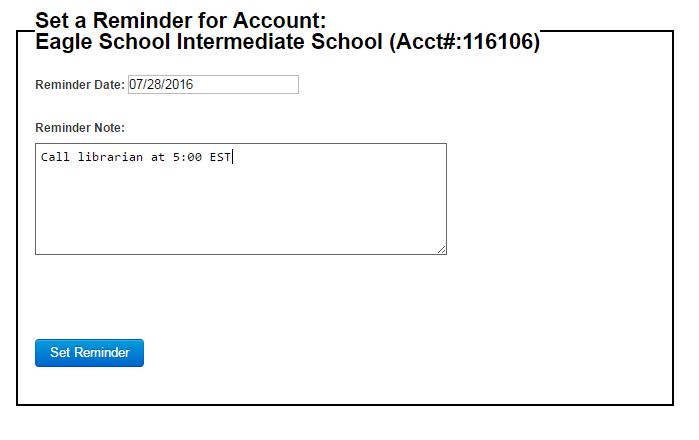
After clicking the Set Reminder button you will be able to set the date and note.
Once completed, the account will now display a Reminder Icon by the school name.

which when you click on will take you to a dashboard page displaying all pending reminders for that account. To note - any reminder you set will only display for yourself.
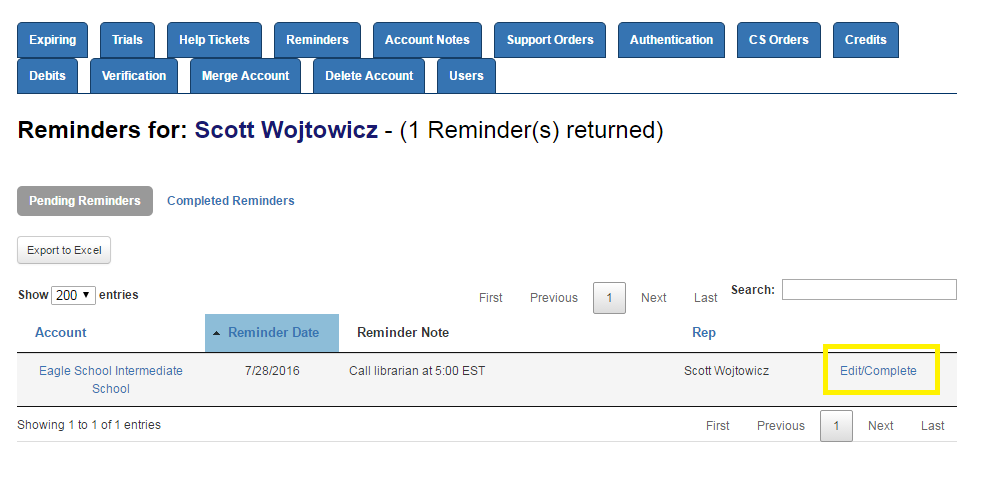
From here, you can edit or complete the reminder task and it will be moved to the Completed Reminder section. To edit the original reminder just change the date or comment without adding a completion date.
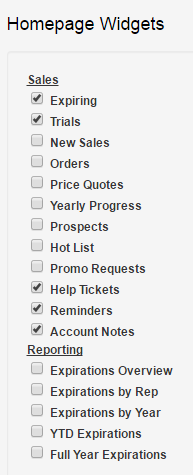
To see all of your pending reminder across all of your accounts - you can add the Reminders Tab to your dashboard display. You can find your Dashboard Widget preferences in the Settings section from the Top Navigation blue bar:

Once in the Settings section, scroll down to the Homepage Widgets area and check the Reminders box and that tab will be added to your dashboard.