
The AMS has been integrated to work with our Product Support Help Desk Ticketing System. You will now be able to see a particular school's/district's ticket history, add notes to any ticket for Support to view, and also submit new tickets on the behalf of your customer.
Please note that historical Help Desk tickets were assigned to AMS accounts programmatically via email domain, and it may be possible for a ticket to not be assigned properly. Also, any tickets that were submitted on behalf of a customer contact or forwarded to the Help Desk directly by Infobase employees, may not have the proper ticket owner assigned either.
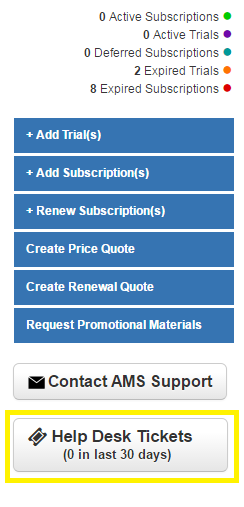
Below the Contact AMS Support button on any Account Page, there is a new Help Desk Tickets button. To give you an idea of the current Support activity for the account, this button will also display the amount of tickets, open or closed, that have been created within the last thirty days.
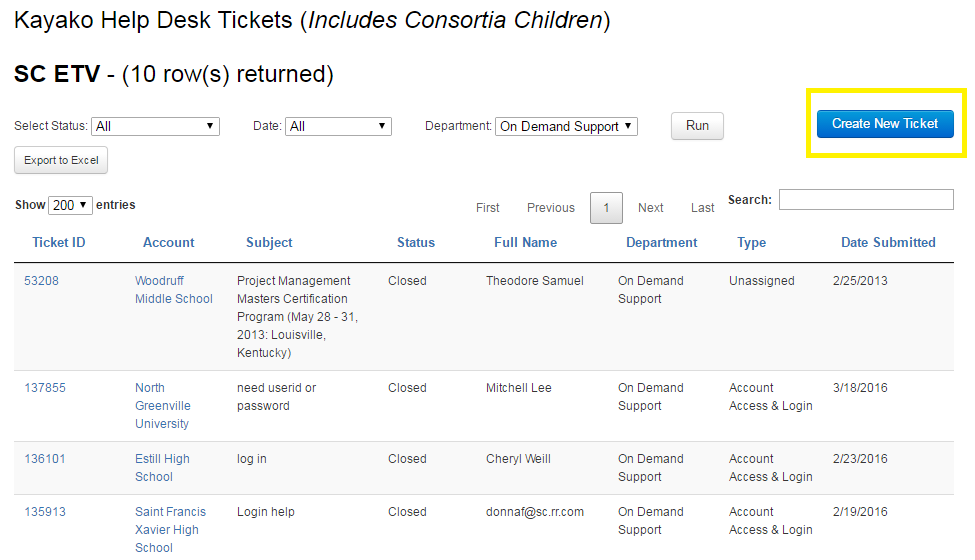
Once you click on the Help Desk Tickets button you will taken to a Ticket History View page. If the Account has any children, their ticket history will also be included. You can set any specific Ticket Status, Date, or Department to filter - then click Run for your results. You may also Export to Excel or Search the Ticket History as well.
Please note that new tickets may take up to 24 hours before displaying here.
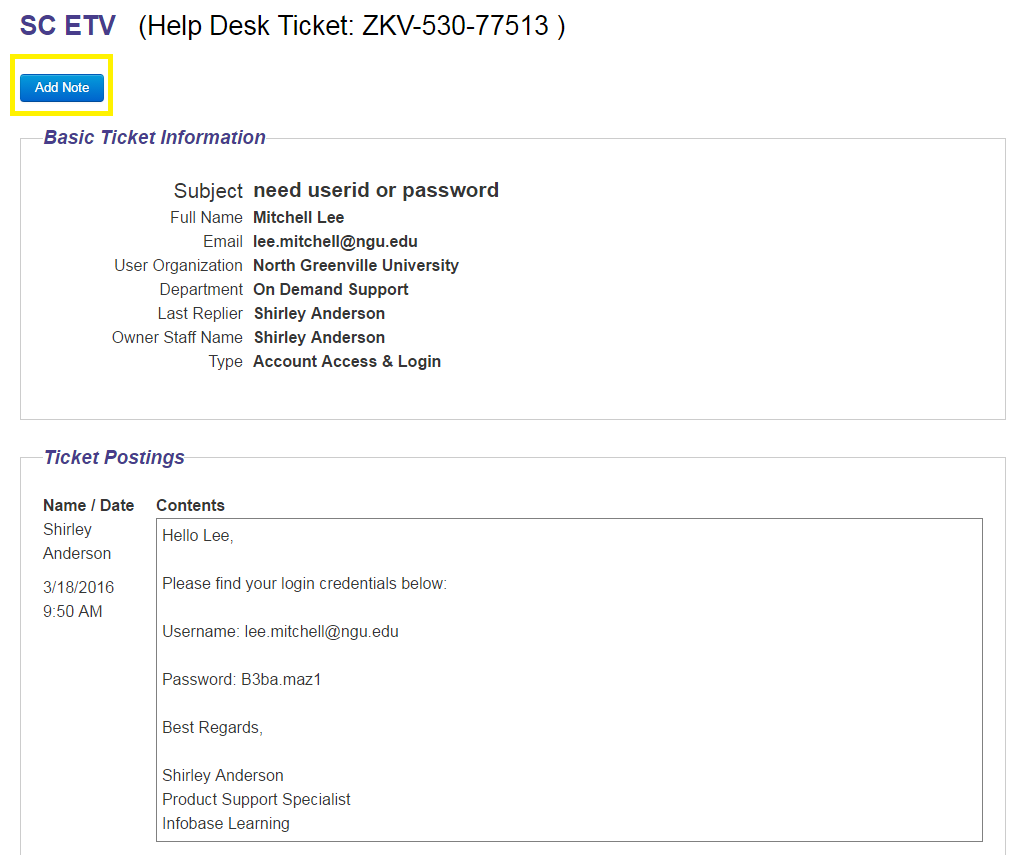
You may, however, click on any Ticket ID for a live up-to-date status of a particular on-going ticket. This page includes all basic ticket information, in addition to all the ticket responses from the customer and our Support Staff. You may also click the Add Note button to leave a Note for the Support Staff regarding the ticket if you wish. You will be able to see your notes in the Notes History Section below the Ticket Postings. This note will go directly in the Help Desk Ticketing System as well.
Back on the Ticket History Page, you can Click the Create New Ticket button to submit a ticket on the customer's behalf. The Ticket will enter the Help Desk as if it came directly from the customer contact, but will also be noted as initiated by the sales rep.
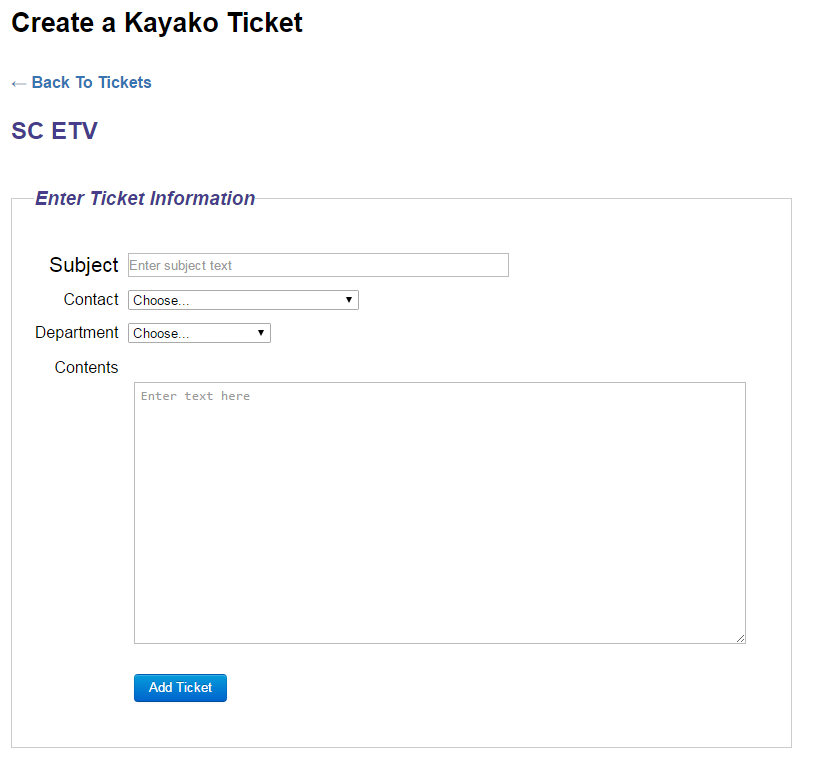
From the Create Ticket Page you must Enter a Subject; Select an existing contact from the AMS or add a custom contact; choose which Support Department you would like to reach; and then fill in the Ticket Body.
Additional Info about the Integration
- Help desk tickets that were initiated by sales reps will not be automatically attached to accounts (reps can setup tickets via the AMS to alleviate such issues going forward – and can even add notes for current tickets -– alert account.support@infobaselearning.com with the AMS ID and ticket ID if you see this occurring).
- Historical Tickets were connected to accounts via email domain (this may result in you not seeing a full record of ALL tickets associated with an account/consortia, etc.).
- Help desk tickets for consortia accounts with multiple parents will display all associated tickets (such as the case with DISCUS and ETV accounts – utilize the Filtering and Search options to narrow down to the relevant tickets).
- Some accounts might display in the list of tickets erroneously (this needs to be fixed manually – alert account.support@infobaselearning.com with the AMS ID and ticket ID if you see this occurring).
- Phone support correspondence is not currently tracked in the ticketing system (a solution is being investigated to get a basic snapshot of the overarching issues expressed during telephone support calls).