
In this AMS tip we are going to go over some of the actions available in your Pending Trials queue.
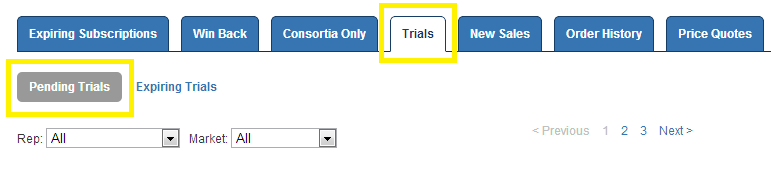
To view the new Pending Trial format, click on the "Pending Trials" tab on your homepage. On this tab, you will still have the option to see further details, reject the request, or send a rejection message. Use the Details option to begin the approval process.
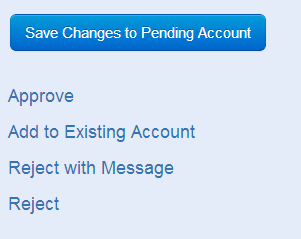
From the Pending Trial Details Page, you will see a list of options:
- Using the Approve Option will link you directly into the Create New Account Wizard with all the pending trial information pre-populated. If the Account name already exists, you must go back and select the Add to Existing Account Option.
- Using the Add to Existing Account Option will assist in importing over the trial products and contact information only.
- Otherwise, you can reject the pending trial with or without sending a message the customer. If you want to successfully reject a trial request, you must first select a reason.
