
Ideally, all new text and new entries should be created and written directly in the Infobase CMS. Any other way may leave the door open to problems. Use other methods at your own risk. Even if text looks fine in the CMS, there could be issues created when eBooks are output.
If you must, first choice is to use HTML files provided by the ePub group (if these files exist from earlier conversions).
HTML
Occasionally ePub may provide some text (e.g., back matter and front matter) that is pre-coded as HTML. To add this text to the CMS, you will start the same way you would if it were plain text.
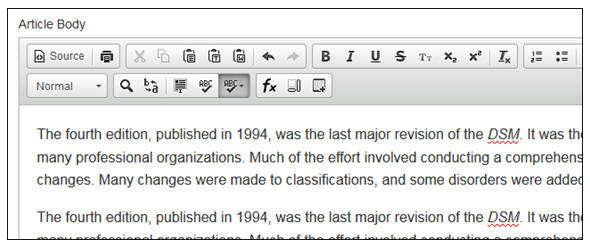
Open your HTML file. (It should open in a browser.) Copy all of the text and paste it into the WYSIWYG editor. You should then be able to freely edit the text. Make all additions, deletions, and other changes to the content after it is in a CMS entry, rather than before you insert the file.
After you've pasted in your text, all editing and updating should be done in the WYSIWYG editor.
If you are citing a website (for example, in a Bibliography or the Further Information section of an article), the URL should be pasted in as text ONLY, not a live link to the site. Therefore, when you paste in your text, make sure URLs do not have hyperlink code attached to them. (If they do, they will typically be underlined and clickable in your source.) You can ensure that this code does not get added by pasting as plain text, and you will know that the live link did not get included because the URL will look exactly like the rest of your text, i.e., not blue or underlined.
Web addresses may be styled with or without the http://. (e.g., http://www.nytimes.com or www.nytimes.com). Please do not include any URLs for content that is behind a paywall.
Word
Never paste text directly into the CMS from a Word document. This may cause formatting errors that will be very difficult to fix. You can't actually see all of these errors – not even if you view the HTML source – but they will cause trouble when the ebooks are created, and perhaps in other uses as well.
To bring text into the CMS from a Word file, you must first copy and paste the text into a plain text editor, such as Notepad, to remove all of its formatting. (You may consider installing Notepad++, which gives you a better screen to view as well as some other expanded capabilities.) If you see characters that look like boxes, or something like this: , you will need to fix them before you bring in your text. Typically these characters are standing in for an unusual line break or space, or sometimes they represent a special character.
Once you have cleaned up your text, you can then copy it and paste it into the CMS text editor using the "Paste as Plain Text" button. At the top of the WYSISYG editor are three clipboard icons. "Paste as Plain Text" is the one in the center (the clipboard that looks like it has the Notepad icon on top of it).
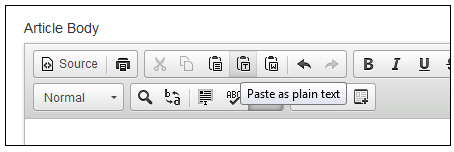
Pasting in from an outside source may mean you lose some of the formatting you DO want. You'll now need to reformat things like subheads (use drop-down style menu), italics, and bold, though paragraph breaks and most special characters will be okay.
Again, after you've pasted in your text, all editing and updating should be done in the WYSIWYG editor.
Umbraco
When pasting from Umbraco, the best solution is to copy text from the WYSIWYG text window in Umbraco and paste it into the Infobase CMS using the "Paste as Text" function. Do not paste your copied text directly into the text window.