For Editors
In order for your writers to make changes to entries in the Infobase CMS, you’ll need to assign articles. Writers will not be able to see (or make edits to) anything in the CMS that is not already assigned to them.
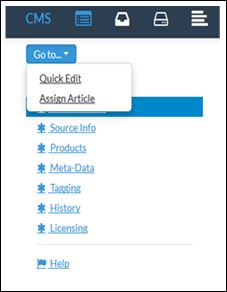
To assign an individual article to a writer, choose “view details” of the article you want to assign. In the upper left-hand corner, you’ll see the “go to” drop-down. Choose “Assign Article” from the drop-down.
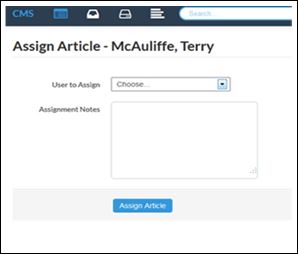
From there, you can choose a name and assign the article to them. You can also include notes about the changes you’d like them to make.
Changes will not appear in the CMS until after you have approved them. Once an author has submitted an article for your review, the status of the article will display as “Sent for Approval.”
To review changes and approve or reject them, use the top nav to go to your “Ready for Approval” queue. Select the “Go to” drop-down next to the entry status, and choose “View Progress.”
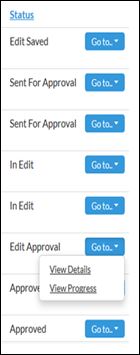
From there, you’ll have the chance to take a closer look at the changes that were made, or go straight to the approval page (where you can also view the changes that were made). While you are in the process of reviewing changes but have not yet approved them, the entry status will display as “Edit Approval.”
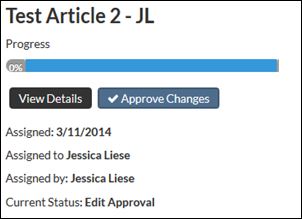
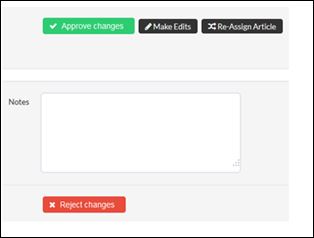
When you are satisfied that the changes can be finalized (or you have concluded that you need to bounce the article back to the writer), click on “Approve Changes.” From there, you can either approve the changes (after which point they will display on the page), make your own edits, assign the article to another writer, or reject the changes back to the writer. To reject, you must add comments to the “Notes” field. It will not bounce the entry back to the writer unless you add a Note. For now, this field is not equipped to display or accept HTML code, so enter your notes as plain text.