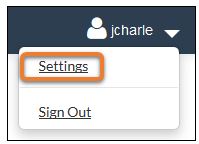
To access user settings, login to the Infobase CMS. You will see your user name in the top right-hand corner of the menu:

Click on the down arrow next to your name. From this dropdown menu, select "Settings" to adjust your personal information:
This brings you to the user settings page, where you can update your user information and password.
Updating Your User Information
You can update your full name and/or email address:
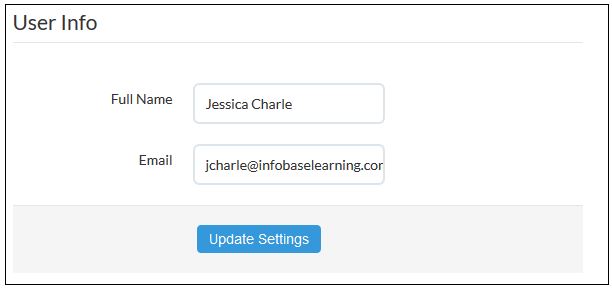
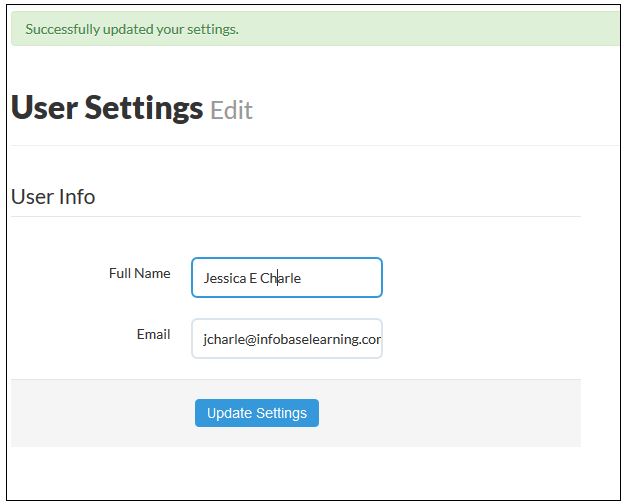
Click into the desired field and make the necessary changes, then click update settings. A green notice will appear at the top of the screen advising that your settings have been updated successfully.
Updating Your Password
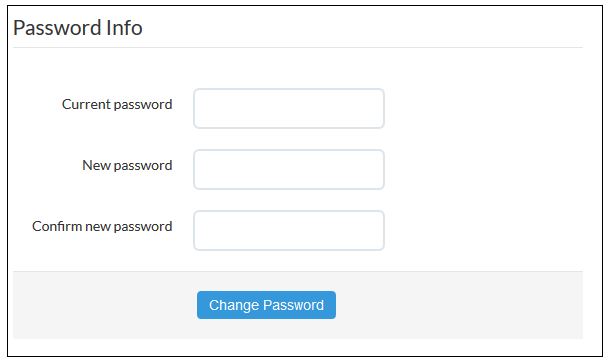
To change your password, enter your current password into the corresponding field, followed by your new password. Once you have entered your new password twice, click change password. Note that your password is case sensitive.
If your new password and the confirmation of the new password are not identical, an error message will appear at the top of your screen:
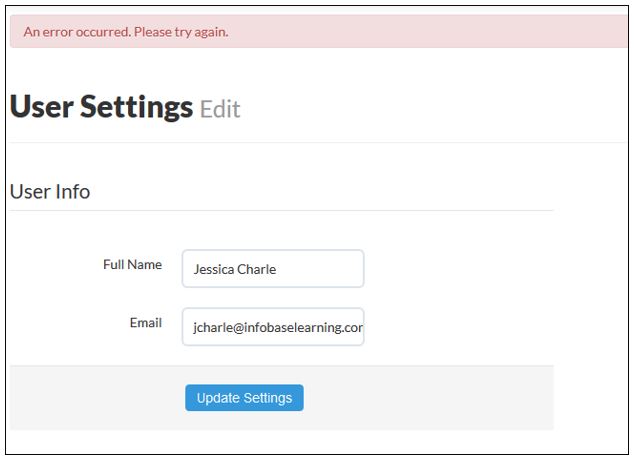
Retype the old and new passwords, being careful that the new password and the confirmation of the new password are the same.
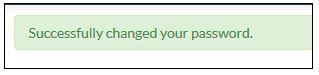
A green message will appear at the top of the screen advising you when your password has been changed successfully.