To search for items in the Infobase CMS, use the search box at the top of the screen:

There are several ways to search within the CMS. You can search the article title field only, or you can search the full-text field, the PIN field, the ISBN field, or the source title field.
Searching Article Titles
The search is set to search article titles by default, so the search button will already be set to "Search Article Titles." To conduct a search that searches only the article title field, enter the title (or part of the title) in the search bar and click the search button.
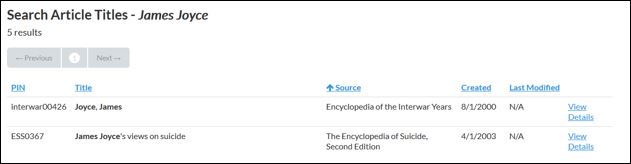
Note that the term you searched for will be bolded within the title section of the results. You can sort the results by article PIN, title, source, date created, and date last modified. Clicking the header of a column, such as PIN, will sort the results alphabetically.
Searching Article Full-Text
To search the full article text in addition to the article title field, enter a phrase or word in the search bar. Click the arrow next to "Search Article Titles" to reveal a dropdown menu. Select "Search Article Full-Text."
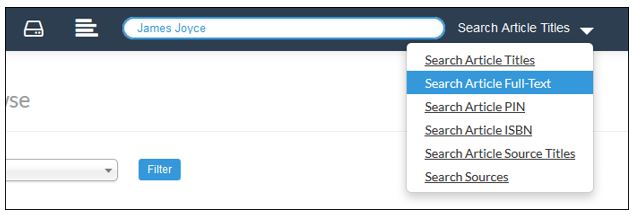
The button will change to reflect this selection:

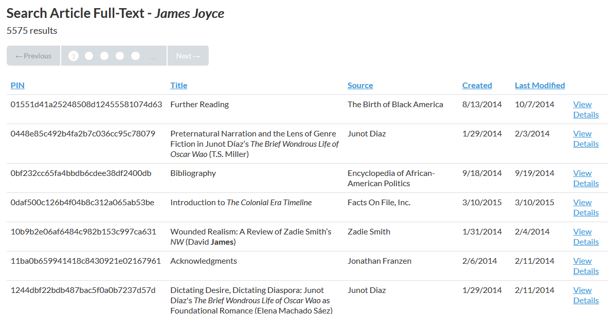
Click "Search Article Full-Text." You can sort by the results' ISBN, PIN, title, source, date created, or date last modified by clicking the column head.
Searching by Article PIN
You can search for an article by its PIN by entering the PIN in the search bar and clicking the arrow next to "Search Article Titles" and selecting "Search Article PIN" from the dropdown menu.
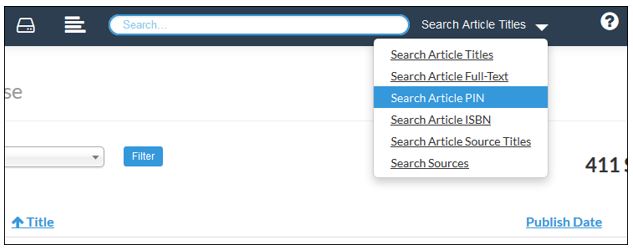
The "Search Article Titles" button will change to "Search Article PIN."

Click "Search Article PIN." Your results will display below.
Searching by ISBN
Enter ISBN in the search bar and click the down arrow next to "Search Article Titles." Select "Search Article ISBN."
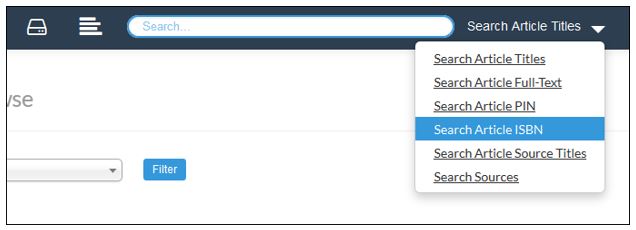
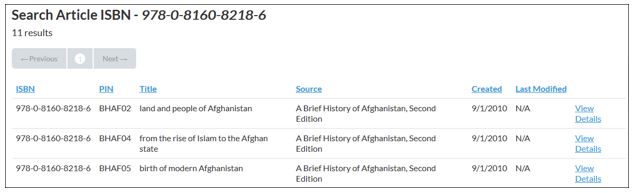
"Search Article ISBN" will take the place of "Search Article Titles." Click the button and articles from the source with the searched ISBN will display. You can sort by ISBN, PIN, title, source, date created, or date last modified by clicking the column head.
Note that the ISBN search requires a minimum of 13 characters including hyphens. This allows you to search by either a 10- or 13-digit ISBNs as long as you include hyphens.
The ISBN attached to each article is the ISBN of its original source, not later eBook output sources.
Searching Article Source Titles
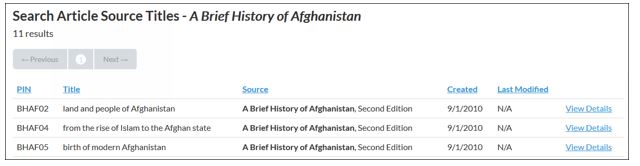
To search the source title field and get results at the article level, enter a word or phrase in the search bar and click the down arrow next to "Search Article Titles." Select "Search Article Source Titles."
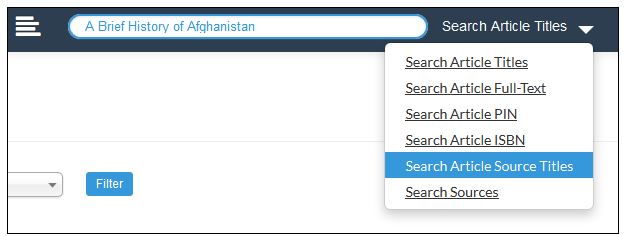
"Search Article Source Titles" will take the place of "Search Article Titles." Click the button and results will display. These results are those articles whose source titles contain your search term. Results are given at the article level. You can sort by PIN, title, source, date created, or date last modified by clicking on the column head.
Searching by Sources
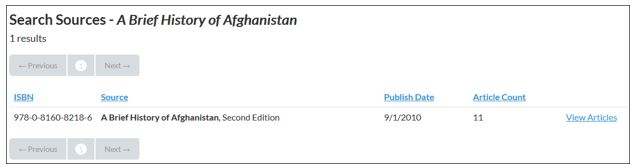
To search the source title field and get results at the source level, enter a word or phrase in the search bar and click the down arrow next to "Search Article Titles." Select "Search Sources."
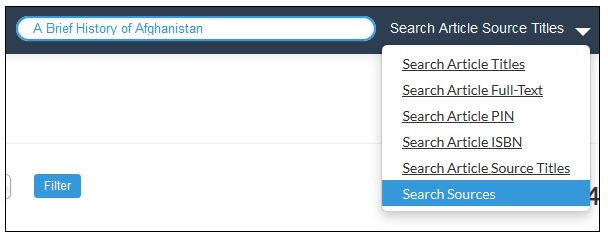
"Search Sources" will take the place of "Search Article Titles." Click the button and results will display. These results are those sources whose title contain your search term. Results are given at the source level.