This article is designed to provide a high level overview of how a title flows through the EdGate tool within the MMS. More specific information on topics mentioned below can be found in other articles.
- All new titles will initially show up in the EdGate Main Queue for everyone to view.
- Titles in this queue may be filtered using the widget configuration section at the top. By default, titles appear in priority order and then by item number.
- Click on an Item# to begin working on a title.
- A title will be considered "In Progress" and automatically shift over to the EdGate In Progress Queue when and editor makes any change to one of the four steps and saves their changes. Upon saving changes, that title will be assigned to this person, and their name will now be displayed under the Editor column.
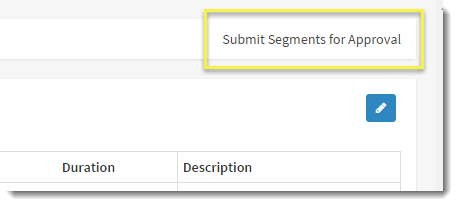
- Each section contains a "Submit for Approval" button in the top right, as shown to the right for Segments.
- Once a section is considered complete. The Submit for approval button should be clicked to submit that section for approval by a managaer. Once the button is clicked, it will change to a green check and indicate it is pending approval. This can be removed from approval by simply clicking the button again if needed.
- A title will only move into the Approval queue once all four steps have been marked as pending approval (Segments, Metadata, Taxonomy, Collections).
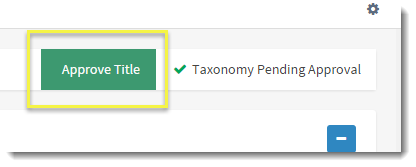
- Only managers are allowed to approve titles. If you are assigned to the manager role, you will see this green Approve Title button appear automatically on any title with all four steps pending approval.
- Clicking on Approve Title will cause the title to drop out of all EdGate related queues and set it up to go into our live products the following morning.