
Several different icons are used in each of the three EdGate workflow queues to represent the status of a title. Each title in the queue has four main steps that must be completed before a title will move into waiting for approval status.
- Below, you will find definitions for icons used to signify the status of a step in the worflow of each title, and
- Icons that signify the priority of a title
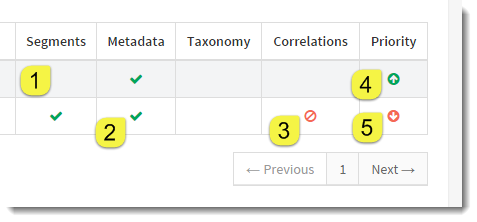
- Empty cell - indicates that this step of a particluar title has not been completed yet and sent for approval. Empty cells in the priority column indicate that a title has normal priority.
- Green check - indicates that this step has been completed by an editor and approval has been requested.
- Red circle with line - indicates that this step should NOT be completed for a particular title. This will only appear under Segments and Correlations.
- Green up arrow - indicates this title is high priority. The queues automatically sort titles by priority, so high priority titles will always appear on top.
- Red down arrow - indicates this title has low priority. The queues will automatically sort low priority titles to the bottom.