
In addition to editing the Title, Grades, Copy and Keywords on the Metadata tab of the EdGate tool, you may also adjust the thumbnail for the full title on the Metadata tab. You have two options for changing the thumbnail:
1. Set the thumbnail from a frame within the video.
2. Upload a new thumbnail from your computer.
1. Setting the thumbnail from a frame within the video:
To change the thumbnail, click the pencil icon inside the Thumbnail section.
Once you are in editing mode, you may start playing the video using the player, or scrub to a specifc spot using the scrub bar. Once you have found your desired image, pause the video and click the Set Current Frame as Thumbnail button below the player.
This change will take effect immediately, but may not show up within the MMS for up to 5 minutes. Kaltura caches thumbnail images and it does take a few minutes for the old one to be replaced everywhere.
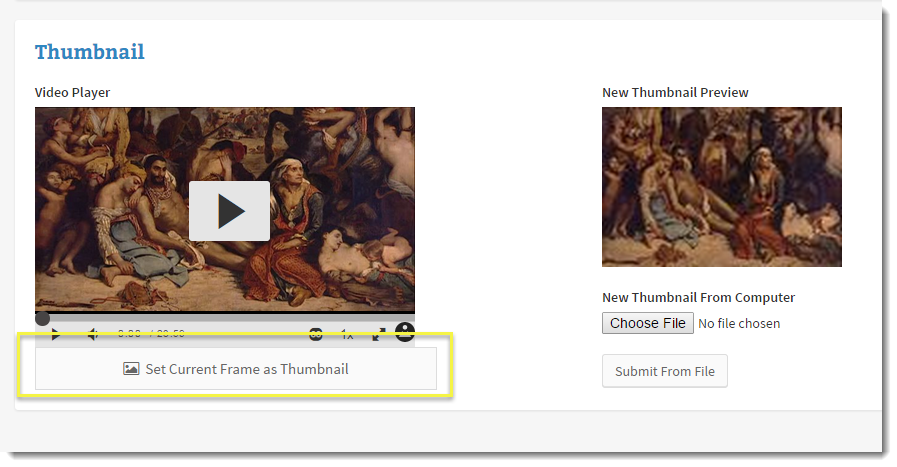
2. Upload a new thumbnail from your computer:
To upload an image from your computer, click on the Choose File button on the right side of the section and select an image saved on your computer. Click the Submit from File button to upload this image to the site and replace the current one.