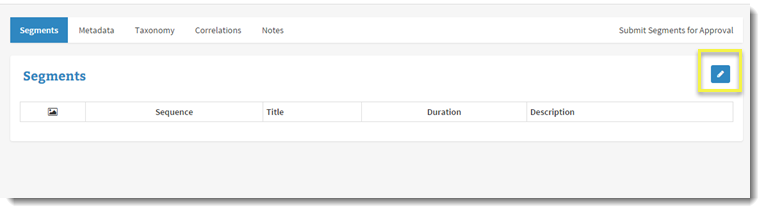
A title that does not have any segments created for it yet will appear as depicted in the screenshot below. To start the segment creation process, click on the pencil icon in the top right of this section.
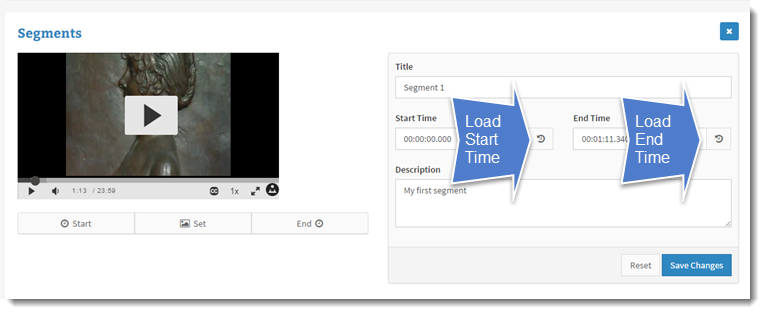
Once you have clicked the pencil icon, the video player and metadata fields should now appear in its place. On the left, you will find the video player and buttons to set your start and stop time, along with the thumbnail image for each segment. On the right, you will find the title and description field for the segment you are working on, along with the currently selected start and end time. Below both of these sections is your list of created segments. They will appear in the order you created them.
Basic steps for creating a segment:
- Start the video and play until you reach your desired start time for a segment. If this is the very first segment and you want to use the very beginning of the video, you can simply click the Start button below the video to record the 0:00 mark.
- Play the video to the desired end point of your segment and pause the video. You may use the scrub bar to seek to a given point within the video as well.
- You may use the Set button to select a thumbnail image for your segment at any point in the segment creation process.
- Enter a title and description for this segment using the text boxes on the right.
- Once you are finished with the segment, click the Add New Segment button.
- Your new segment will appear in the grid below the player. The video player will remain paused so that you could select the same point as your new starting point of the next segment.
- If you ever lose your place, you can reload the previous segment by clicking on the pencil icon on the left side of the grid next to the desired segment.
- Once the segment metadata and start/end times are loaded, you may click the circular arrow icon to the right of the times to load that time into the player. Please wait until you see the player adjust before clicking play.
- You may use the trash can icon on the right side of the grid to remove any unwanted segments.
- Once you have finished editing segments, click the Save button at the bottom of the grid to save your changes.