
For Editors
Selecting a List, Sorting and Filtering
You will see all of the direct link lists controllable with this tool that have already been set-up in the CMS, what product they are in, and what location within that product. Using the filters on top, you can limit the number of lists you view by product or by type of list.
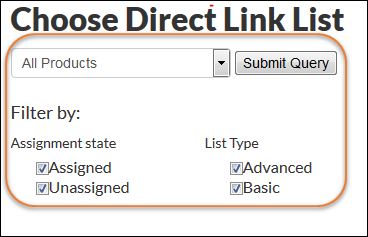
To filter, select from the products dropdown menu or check/uncheck options in assignment state or list type, then click Submit Query.
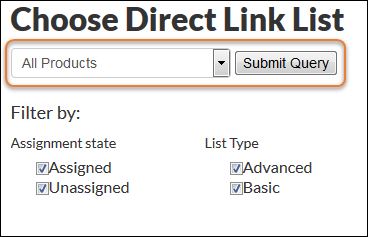
You can filter and then sort, or vice versa (just note that changing the product you are searching by will reset all filter and sort selections).
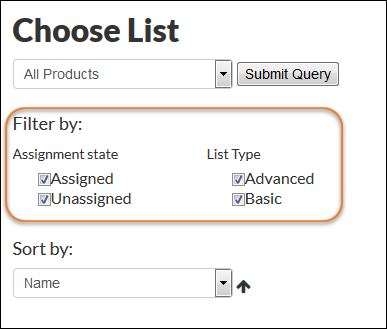
Assignment state designates whether a list is assigned to a product or not. This might be useful when you are working on a list; you can leave it unassigned until it is done.
List type allows you to filter by advanced or basic list. A basic list is a list with no metadata displaying. For example, the suggested search lists that appear at the bottom of Topic Centers are basic lists, only the display term shows there. Likewise, primary source documents lists that appear in the right rail of Topic Centers are basic lists.
Note that only the display entry title appears for basic lists. Compare that to an advanced document list, which has date and author displayed as well (for example, you can see these fields displayed in Constitutions and Charters for one of Modern World History's Advanced lists). Please note that fields displayed will vary with the different types of advanced list. You will need to populate this meta-data when you add new direct links to advanced lists (listed in more detail later).
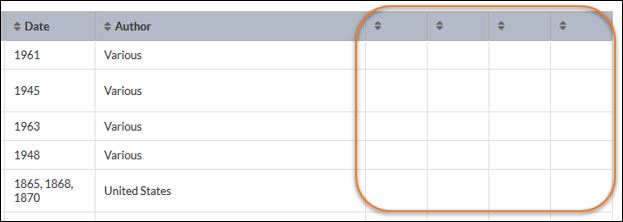
Please note, that as we work on this tool, some of the displays are not quite ideal. For example, both basic and advanced lists display blank meta-data columns (see below). Please ignore these for now. Issues like this will be resolved in the future.
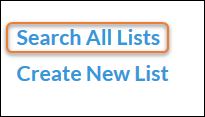
Note that the "Search All Lists" link at the top of the tool only works for search terms, and does not work for direct link terms.
Creating a New Direct Link List
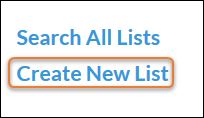
To create a new Direct Link list, you can either select "Create New List" from the Choose Direct Link List page, or "Create New Direct Link List" from the list dropdown in the top menu:
Or
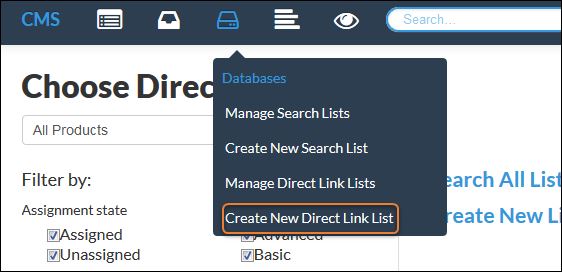
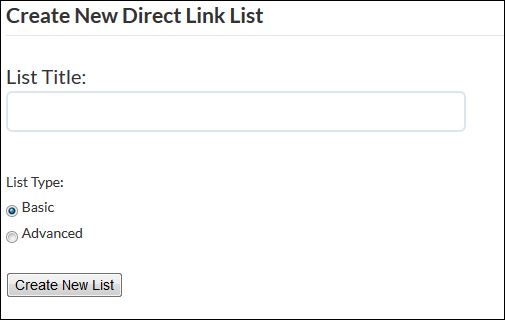
Either option will take you to the Create New Direct Link List page. Enter your desired title, select the type of list, and then click "Create New List:"
Editing Direct Link Lists
To enter a list that already exists, click on the title. Once in a list, you will see a table of every term belonging to that list.
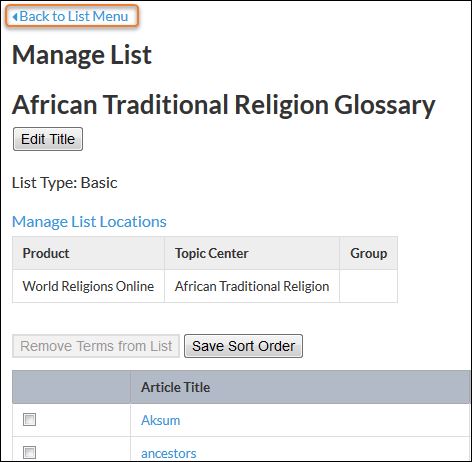
This page allows you to edit the list title and the terms that appear in the list. To get back to the "Choose Direct Link List" page at any time, click the "Back to List Menu" link at the top right of each page:
Editing a List Title
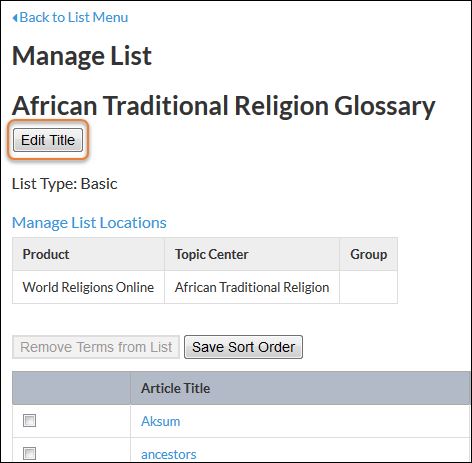
Once in a list, click on the "Edit Title" button at the top of the page:
This will allow you to edit the text:
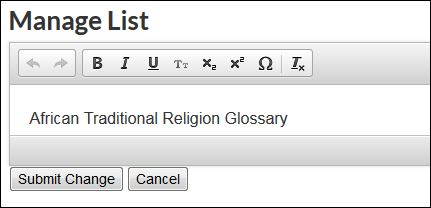
With you cursor, adjust the title as desired,[1] then hit "Submit Changes" to save; "Cancel" will allow you to exit without changing the title. Note that you are unable to add HTML coding to the title at this time.
Removing a List Item from a Direct Link List
To remove an item from a list, click on the check box to the left of the display entry title.
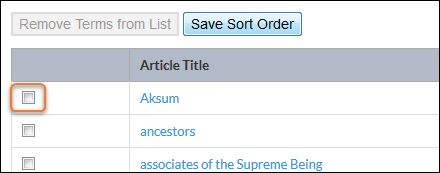
Once an item is selected, the "Remove Terms from List" box will be usable.
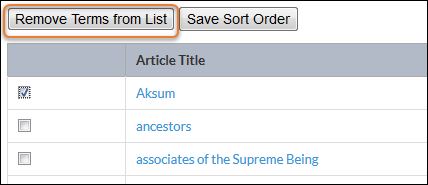
Click "Remove Terms from List" and the selected terms will be removed. You can remove multiple items at a time by selecting additional items. If you wish to reinstate the link into your list, follow the directions for adding an item below.
Adding an Item to a Direct Link List
To add a direct link to a list, click the link "Add Link to List" in upper right corner. Note that this link can also be found at the bottom of a list in the right corner.
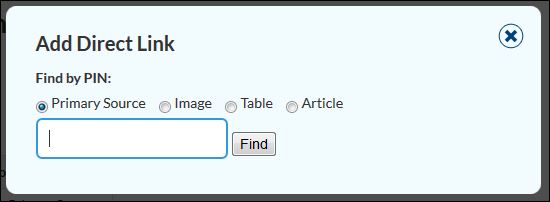
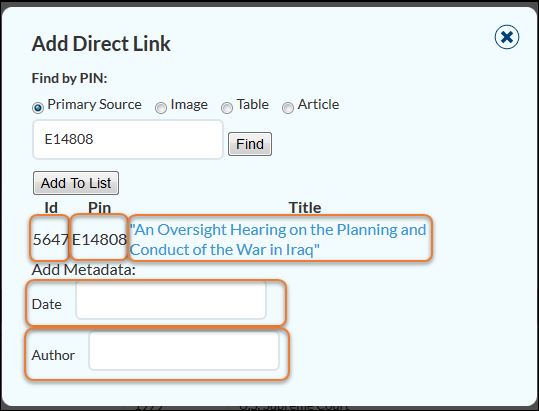
A dialogue box will pop up. From here, you can search for Primary Sources, Images, Tables, and Articles to add to the list. Click the radio button next to the appropriate record type, then enter the appropriate PIN and click "Find." When the record is found, its title will appear below in blue, so you can confirm that it is the correct entry. Once you confirm, for basic lists, you can add to the list.
For advanced lists, Primary Sources, Images, and Tables need some Meta-data added to complete the list. For Primary Sources, add the appropriate date and document author in the provided fields before clicking "Add To List." For Images, please populate date. For Tables, please populate date where applicable. Unfortunately, due to the list tools still be in progress, the spacing of the item Id, Pin, and Title is not ideal when adding a direct link. Please be aware of this when adding links.
Changing the Order in Which the Terms in a List Display
To adjust the order in which the list terms display, click on the arrows beside the field you would like the list sorted by. For example, to change the default sort order of the list items to date, click the arrow by the Date field.
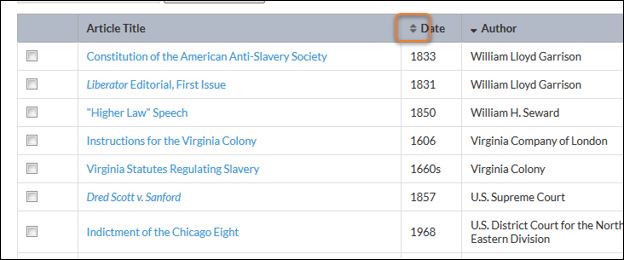
You can also customize the order of your list simply by selecting a term and dragging it to the desired location. To do this, hold cursor over the list item you wish to move. Your cursor will look like this:  . Click on the item and drag and drop it to the correct order. Once you are satisfied with the order, save by clicking "Save Sort Order."
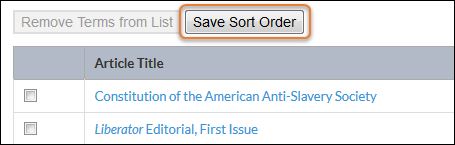
Note that changing the sort order affects all list locations.
Assigning List Placement
Use Manage List Locations to assign and unassign a list to a product and within a product to a homepage or to a Topic Centers. In your list, select "Manage List Locations" in the upper-left hand corner:
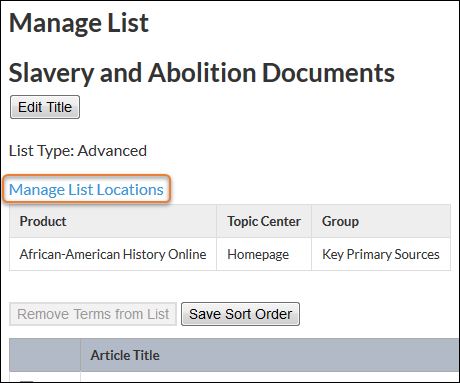
The "Choose Locations for List" box will pop up on screen, showing the currently assigned products and locations. Please note that for Direct Link Lists, you can only assign each list to one topic center (but you can assign them to multiple groups).
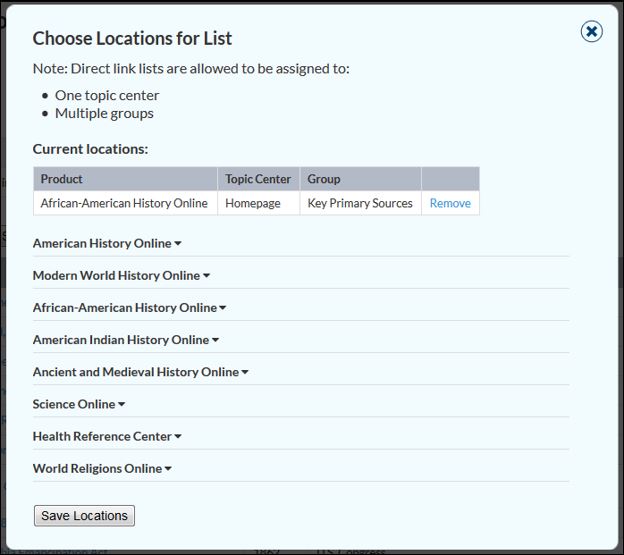
Find the new location to which you would like to add this list using the drop-down menus. Use the arrows next to each product to expand the list of options available. Check or uncheck to change.
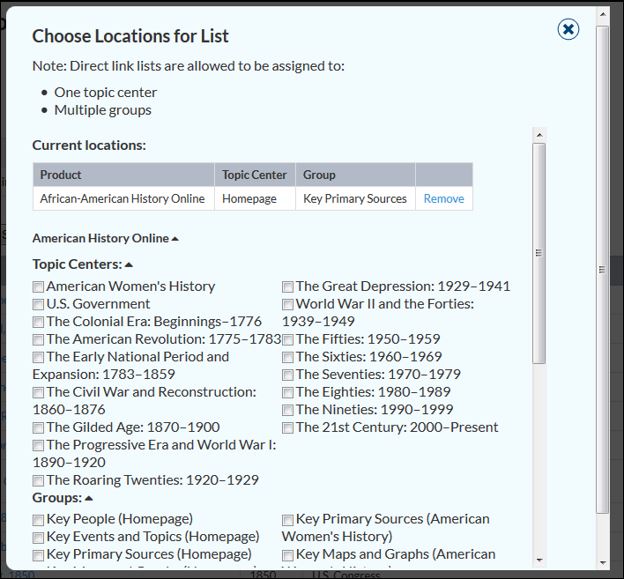
To remove a list, click the "Manage List Locations," then select "Remove." Save your changes, and the list will be disassociated from that location.

Groups
Information to come. For now, please do not change the Group to which a list belongs.
[1] Keep in mind, you need to leave Topic Center names in list titles where they exist for now. Also, certain changes to list titles will break some lists in HRC or make them stop displaying. Consult Nicole or Jessica before editing an existing list title.