
To access the Infobase CMS, go to this website: http://cms.infobaselearning.com and log in using the username and password you've been given. Note that your password is case sensitive.
Always make sure you are using Firefox as your browser when working in the CMS, and not IE, Safari, Chrome, or any other browser.
When you log in, you should see the articles that have been assigned to you. Click the "Go to" box on the far right. A drop-down will appear. When you select "Edit Article," you'll be taken to the edit screen, where you can write your text and/or make changes to existing text.
Once you begin editing the article, the CMS will auto-save your work periodically, but it's a good idea to save it yourself every few minutes, especially if you are writing a lot of text. (The "Save Changes" button is at the bottom of the page.)
Once you save an article, any text you have deleted from it will be gone forever. You won’t be able to undo the deletion or put the text back in. So be very careful when it comes to deleting text.
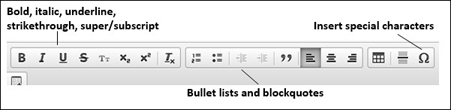
You should also use the menu across the top of the text editor to format text as bold, italic, underlined, or superscript/subscript; add a bullet list, blockquote, or table; or insert a symbol or special character.
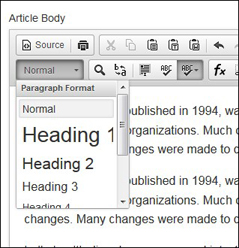
To format subheads, please use the drop-down that's second from the left. (It will default to "Normal.") Don't simply make them bold. Do not use "Heading 1." In the text, A heads should be Heading 2, B heads should be Heading 3, and so on.
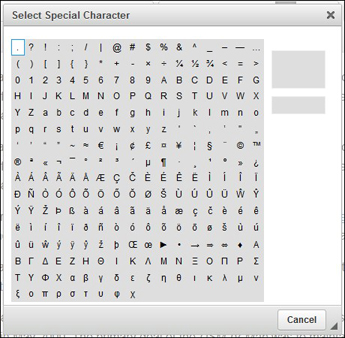
Please use the “insert special character” function for any symbol or character that doesn’t appear on your keyboard–for example: em dashes, en dashes, ellipses, and letters with accent marks.
If your text includes a reference to a website (for example, in the Further Information section of an article or a Bibliography), the URL should be text ONLY, not a live link to the site. Therefore, if you are pasting it in from another source, make sure the URL does not have hyperlink code attached to it. (If it does, it will typically be underlined and clickable in your source.) You can ensure that this code does not get added by pasting as plain text (see: Populating Text Fields from Existing Files), and you will know that the live link did not get included because the pasted text will look exactly like the rest of your text, i.e., not blue or underlined.
Web addresses may be styled with or without the http://. (e.g., http://www.nytimes.com or www.nytimes.com). Please do not include any URLs for content that is behind a paywall.
Saving and Submitting Your Work
Once you are done editing the article, you’ll need to save it and mark it ready for approval. These buttons can be found at the bottom of the page, beneath the text window.

After you click the Mark Ready for Approval button, the entry will be sent for approval. Writers will not be able to make further changes. If more changes are required, the article will need to be reassigned, or the changes rejected by the editor. (Editors can approve or modify their own changes to a given article.)